Understanding Plug Walk AI Filter Output Variations
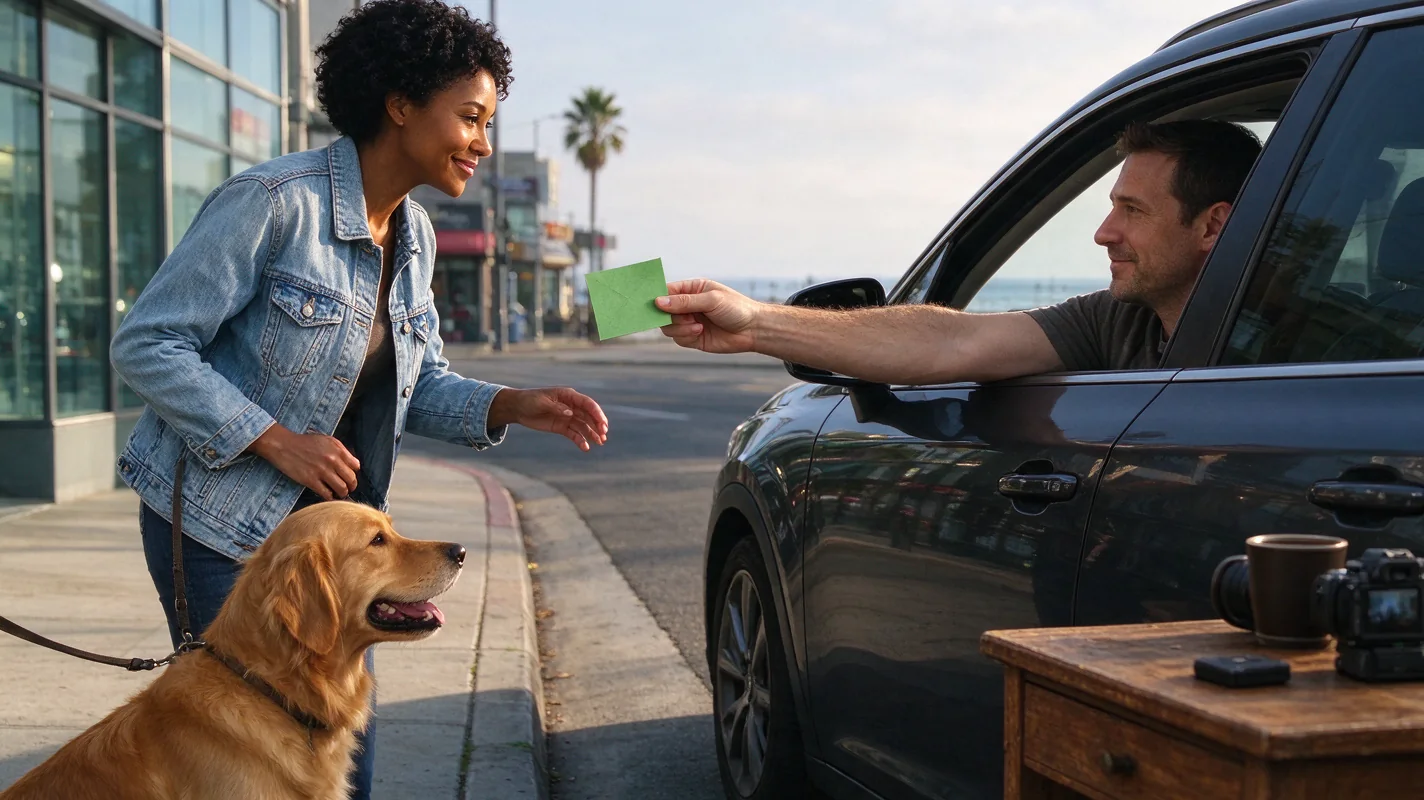
The Plug Walk AI Filter, utilizing the Seedance 2.0 engine, generates short MP4 videos based on user inputs. While the technology aims to create engaging visual content, AI-driven processes inherently involve variability. Understanding the potential for imperfections is key to managing expectations and troubleshooting effectively. The filter constructs a prompt-driven car-window scene at sunset, featuring a driver's-window POV. This scene includes a specific sequence: a friendly one-dollar tip, a grin, stepping back, and a loose, bent-knee side-to-side walk. An original instrumental beat accompanies the visual, but it's crucial to note that the AI does not replicate exact reference-video motion. Instead, it interprets the input to create a novel animation within the defined scene parameters. AI results for faces, hands, motion, and audio can vary significantly. Therefore, exact likeness, precise timing, viral reach, or guaranteed successful output cannot be assured. The focus of this guide is to help you diagnose and address common issues with the visual elements of the generated video, particularly concerning the face, hands, and the 'plug walk' motion itself, without resorting to endless paid retries.
Diagnosing Common Face and Hand Anomalies
Face and hand distortions are among the most frequent challenges encountered with AI-generated content. In the context of the Plug Walk AI Filter, these can manifest in several ways. Face drift refers to the AI's generated face not consistently maintaining the likeness of the input photo or appearing to shift unnaturally throughout the video. This can happen if the input photo has complex lighting, a very unusual angle, or if the AI struggles to interpret subtle facial features. Hand anomalies are also common, especially in the "one dollar friendly tip" and "step back" sequences. You might observe duplicated fingers, unnaturally elongated digits, hands merging with objects, or hands appearing in incorrect positions. The "grin" can sometimes be exaggerated or distorted, appearing more like a grimace. These issues often stem from the AI's difficulty in accurately rendering fine details and complex poses. The model is trained on vast datasets, but the nuances of human anatomy, particularly hands, can still pose a challenge. The filter's process of generating a new prompt-driven scene means it's not simply overlaying your subject onto a pre-existing animation; it's constructing the animation anew, which can lead to these rendering errors.
Troubleshooting Motion Sync and Frame Issues
Beyond facial and hand anomalies, the 'plug walk' motion itself can sometimes be problematic. Motion sync issues occur when the generated walk cycle doesn't feel fluid or natural, or if it appears disconnected from the accompanying audio beat. This could involve jerky movements, steps that are too fast or too slow, or a lack of the characteristic loose, bent-knee sway. Another common problem is feet outside the frame. Given the 9:16 aspect ratio and the driver's-window POV, the AI attempts to keep the subject within the visual field. However, during the "step back" or the side-to-side walk, the lower extremities might be cut off or appear awkwardly cropped. This is often a result of the AI prioritizing other elements of the scene or miscalculating the character's full range of motion within the confined frame. It's important to remember that the filter generates a new prompt-driven scene, not an exact copy of referenced motion. This means the AI is interpreting the concept of a "loose bent-knee side-to-side walk" and applying it within its generated environment, which may not always perfectly align with user expectations or the input subject's natural movement.
Input Optimization: The Key to Better Results
Since the Plug Walk AI Filter relies heavily on the quality and clarity of your input, optimizing your source material is the most effective way to mitigate common problems. When providing a photo, choose one where the subject's face is clearly visible, well-lit, and facing forward or at a slight angle. Avoid photos with harsh shadows, motion blur, or distracting backgrounds. For hands, ensure they are in a neutral or easily interpretable pose if possible, although the filter is designed to generate specific actions. If you're using text input, be as descriptive as possible about the subject's appearance and the desired facial expression, but remember the core scene elements (sunset, car window, walk) are fixed. The filter's "Standard Seedance 2.0" setting is the only option available, so variations in speed or complexity are not possible. Focusing on a clear, high-resolution input image is paramount. For a deeper dive into selecting the best visual input, consult our guide on best-photo-for-plug-walk-filter.
Worked Example: Diagnosing and Adjusting an Imperfect Output
Illustration: Let's consider a scenario where a user submitted a photo of their pet dog for the Plug Walk AI Filter. The generated video shows the dog's face looking somewhat distorted, with its ears appearing elongated, and its paws are frequently out of frame during the walk. The "grin" is absent, replaced by a neutral expression.
Diagnosis:
- Face Distortion (Ears): The AI struggled to interpret the dog's ear shape, leading to elongation. This is a common issue with non-human subjects or subjects with unique features. The input photo might have had the ears in a position that was difficult for the AI to render consistently.
- Paws Out of Frame: The "loose bent-knee side-to-side walk" combined with the fixed 9:16 frame and car-window POV caused the dog's paws to be cropped. The AI prioritized keeping the dog's body and head visible over ensuring the full leg motion.
- Missing Grin: The AI did not interpret a "grin" from the input photo, possibly because the dog's mouth was closed or the expression was too subtle. Since the filter generates a new prompt-driven scene, it attempts to incorporate elements like a grin, but if the input doesn't support it, the result can be a default neutral expression.
Adjustment Strategy (One Variable Change): Instead of resubmitting the same photo, the user decides to try a different input. They select a new photo of the same dog where its ears are held in a more neutral, less exaggerated position, and its mouth is slightly open, offering a hint of a "smile" that the AI might interpret as a grin. Crucially, they also ensure the photo is taken from a slightly higher angle, hoping this might help the AI keep the paws within the frame during the generated walk. They submit this new photo using the Standard Seedance 2.0 setting, keeping all other parameters identical.
Outcome Assessment: The new output shows a less distorted face with more natural ear shapes. The "grin" is now more apparent, resembling a happy dog expression. However, the paws are still occasionally out of frame, indicating that the frame constraint is a persistent factor. This is an imperfect completed output – it's not flawless, but it's a significant improvement and the task completed successfully, consuming credits. It is not a failed task which would result in credits being returned.
Practical Checklist for Improving Output
Use this checklist to systematically approach troubleshooting and improve your Plug Walk AI Filter results:
| Category | Issue | Potential Cause | Recommended Action |
|---|---|---|---|
| Input Photo | Face distorted/unrecognizable | Poor lighting, low resolution, unusual angle, complex facial features. | Use clear, well-lit, high-resolution photos. Subject facing forward. Avoid extreme angles or obstructions. |
| Hand anomalies (extra/missing fingers) | AI's difficulty rendering fine details; input photo hand pose unclear. | Use photos with hands in neutral, visible positions if possible. Focus on clear facial input as hands are often generated. | |
| Motion/Scene | Walk cycle jerky/unnatural | AI interpretation of "loose walk" differs from expectation; beat sync issues. | Ensure input photo is static and clear. Understand AI generates new motion, not copies. Experiment with slightly different poses in input photos. |
| Feet/Paws out of frame | Fixed 9:16 frame; AI prioritizing upper body; "step back" motion. | Try slightly higher camera angle in input photo. Accept that some cropping may occur due to frame constraints. Focus on the overall effect. | |
| "Grin" missing or distorted | Input photo expression not clearly a "grin"; AI interpretation limits. | Use input photos with clear, positive facial expressions. Understand AI's interpretation may vary. | |
| General | Overall output quality varies | AI processing variability; complexity of input. | Accept that AI results are not guaranteed. Focus on one input change at a time. Review plug-walk-ai-filter-prompt for input ideas. |
Comparison: Imperfect Output vs. Failed Task
It's crucial to distinguish between an imperfectly generated video and a failed task. Imperfect output means the AI successfully processed your request and generated a video, but it contains visual anomalies such as slightly distorted faces, odd-looking hands, or motion that isn't perfectly synchronized. The video is produced, credits are consumed, and the output is considered complete, albeit not flawless. This is the most common scenario when dealing with AI generation. Failed task, on the other hand, occurs when the system is unable to generate any video at all. This could be due to technical errors, corrupted input files, or exceeding system limitations (e.g., file size). In the event of a failed task, the credits used for that specific generation are returned to your account. Failed tasks do not result in automatic cash refunds. Understanding this distinction helps manage expectations regarding credit usage and the nature of AI-generated content. For more on credit policies, see plug-walk-ai-filter-cost.
Frequently Asked Questions (FAQs)
Q1: Can I get a refund if the face looks weird?
A1: No, refunds are not provided for imperfect outputs. The Plug Walk AI Filter operates on a "pay-per-generation" model. If the AI generates a video, even with distortions, it is considered a completed task, and credits are consumed. Refunds are only issued for genuinely failed tasks where no video could be produced.
Q2: How can I ensure my pet looks exactly like in the photo?
A2: AI generation introduces variability, and exact likeness is never guaranteed, especially with non-human subjects. While optimizing your input photo (clear, well-lit, distinct features) can improve results, expect some AI interpretation. For pet-specific considerations, refer to plug-walk-ai-filter-cat-dog.
Q3: What if my dollar bill looks distorted or duplicated?
A3: Hand and object rendering can be challenging for AI. If the dollar bill appears distorted or duplicated, it's an artifact of the generation process. Try submitting a clearer photo or a text description emphasizing a simple, flat dollar bill. Remember, the AI creates a new scene, not a perfect replica.
Q4: Is there a way to preview the generation before paying?
A4: No, the Plug Walk AI Filter does not offer free credits, signup rewards, trial generations, or watermark previews. Purchase of credits is required before any generation process begins. The 15-second payment prompt is a countdown to purchase, not a preview.
Take Your Content to the Next Level
While AI generation comes with inherent variability, understanding the common pitfalls and optimizing your inputs can significantly enhance your results. Don't let occasional imperfections deter you from exploring the creative potential of the Plug Walk AI Filter. Experiment with different photos, focus on clarity, and manage your expectations.
Try the tool from this guide
One photo or text idea. The default 720p, 12-second video costs 30 purchased credits. Failed tasks return credits.
Make your Plug Walk AI video
The car-window scene is already prepared. Add only the details that matter to you.
This video: 30 credits · 720p · 12 seconds
Choose one photo or enter at least 10 characters, then confirm permission to continue.
Paid generation only. See the exact credits before you start.
Plug Walk AI Filter
Plug Walk AI Filter editorial team · Editorial guidance based on the current product settings.