Understanding the Plug Walk AI Filter Workflow
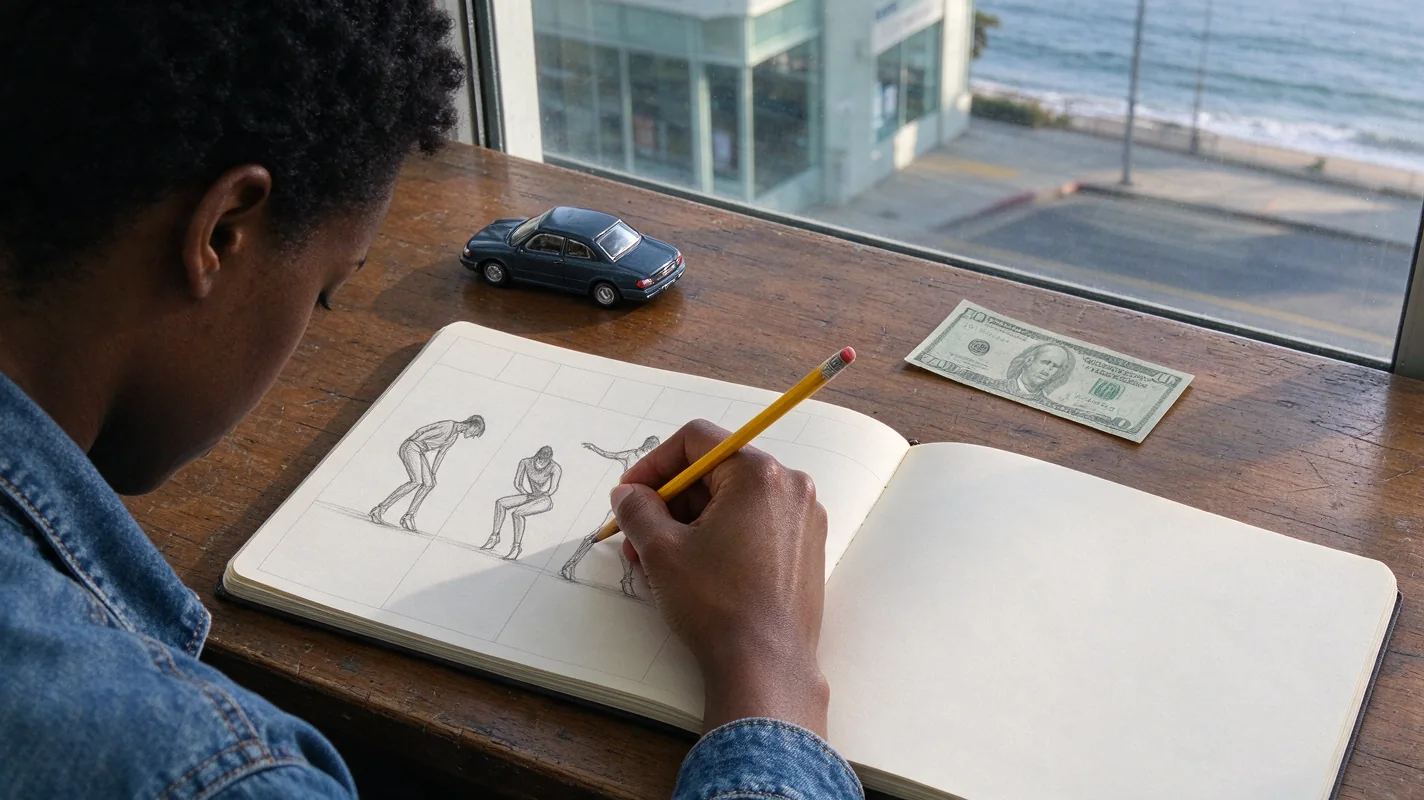
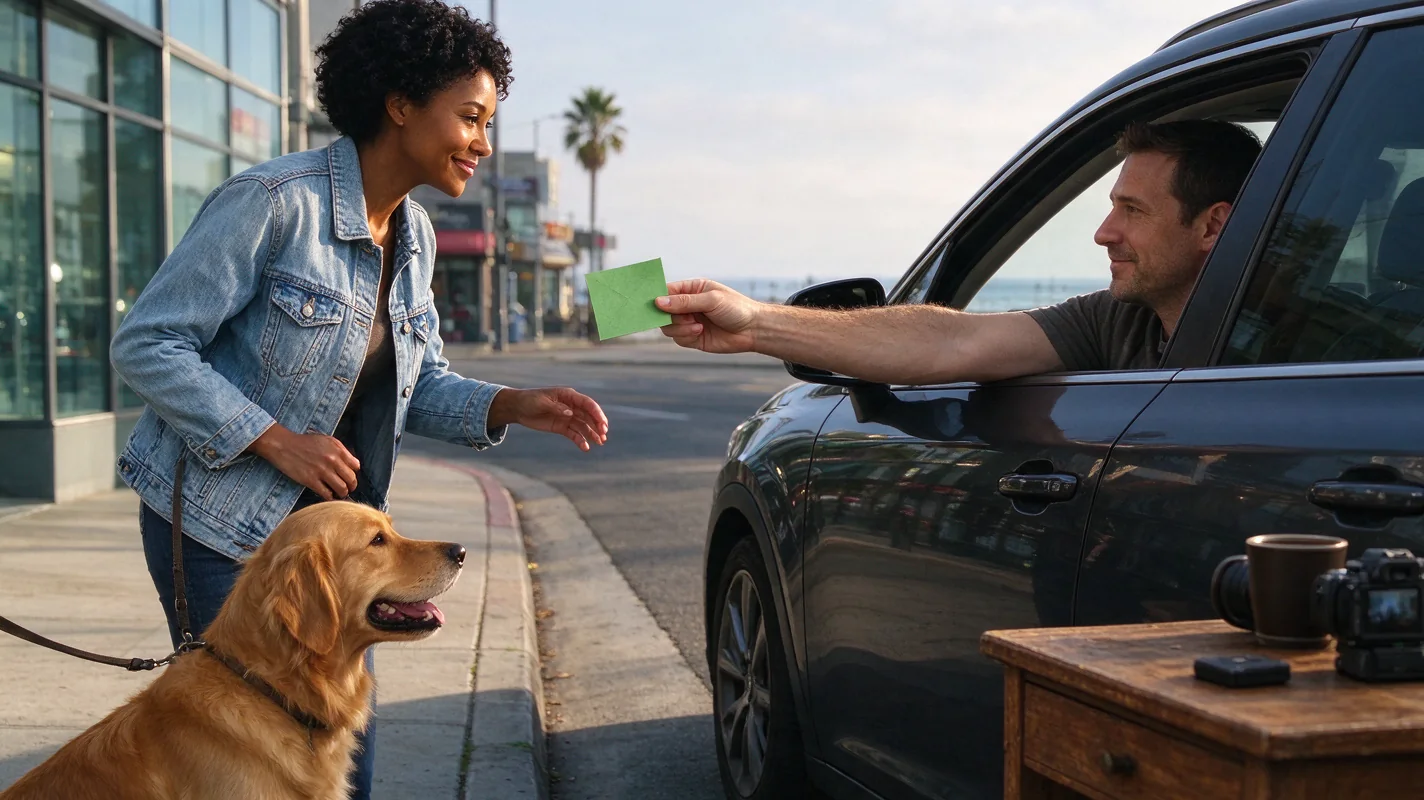
The Plug Walk AI Filter offers a novel way to transform a single static image into a dynamic, AI-generated video. Unlike template-based editing tools, this browser-based service uses artificial intelligence to interpret your input and create a unique visual experience. The core concept involves a prompt-driven scene, typically a car-window perspective at sunset, featuring a specific set of actions: a friendly tip, a grin, stepping back, and a loose, bent-knee side-to-side walk. It's crucial to understand that this is not a motion-copying tool; it generates new content based on your input and the AI's interpretation of the "Plug Walk" aesthetic. The output is a default 12-second, 9:16 aspect ratio, 720p MP4 video, utilizing the Standard Seedance 2.0 model. This guide will walk you through the entire process, from selecting your input to understanding the final output and its nuances.
Input Requirements and Best Practices
To begin, you'll need to provide an input. The Plug Walk AI Filter accepts either a single photograph or descriptive text. For photographic input, the file must be in JPG, PNG, or WebP format, with a maximum file size of 10MB. The subject of the photo can be a consenting adult or a pet. If you choose to use text, you can describe an original subject. For optimal results, especially when aiming for the "Plug Walk" persona, selecting a photo that clearly depicts the subject's face and upper body is recommended. Consider the lighting and pose; a well-lit, clear image will give the AI more information to work with. While the filter can be used with pets, the "Plug Walk" aesthetic is inherently human-centric, so results with animals may vary significantly in terms of capturing the intended vibe. For a more detailed guide on choosing the best photo, refer to [best-photo-for-plug-walk-filter].
The Generation Process: AI vs. Templates
It's essential to distinguish the Plug Walk AI Filter's generation process from that of typical video editing templates, such as those found in CapCut. Template-based editors overlay your media onto pre-designed animations and effects. You insert your photo or video clips, and the template dictates the motion and style. The Plug Walk AI Filter, however, operates on a generative AI model. It takes your input (photo or text) and a set of predefined parameters (the "Plug Walk" scene, actions, and default settings) and creates entirely new visual content. This means each output is unique, even with the same input, as the AI interprets the prompt and applies its learned patterns. The AI generates elements like the face, hands, motion, and even an original instrumental beat. It does not replicate exact reference video motion. This generative approach allows for more creative interpretation but also means results can vary. For a direct comparison, see [plug-walk-ai-filter-vs-capcut].
Step-by-Step Generation: A Worked Example
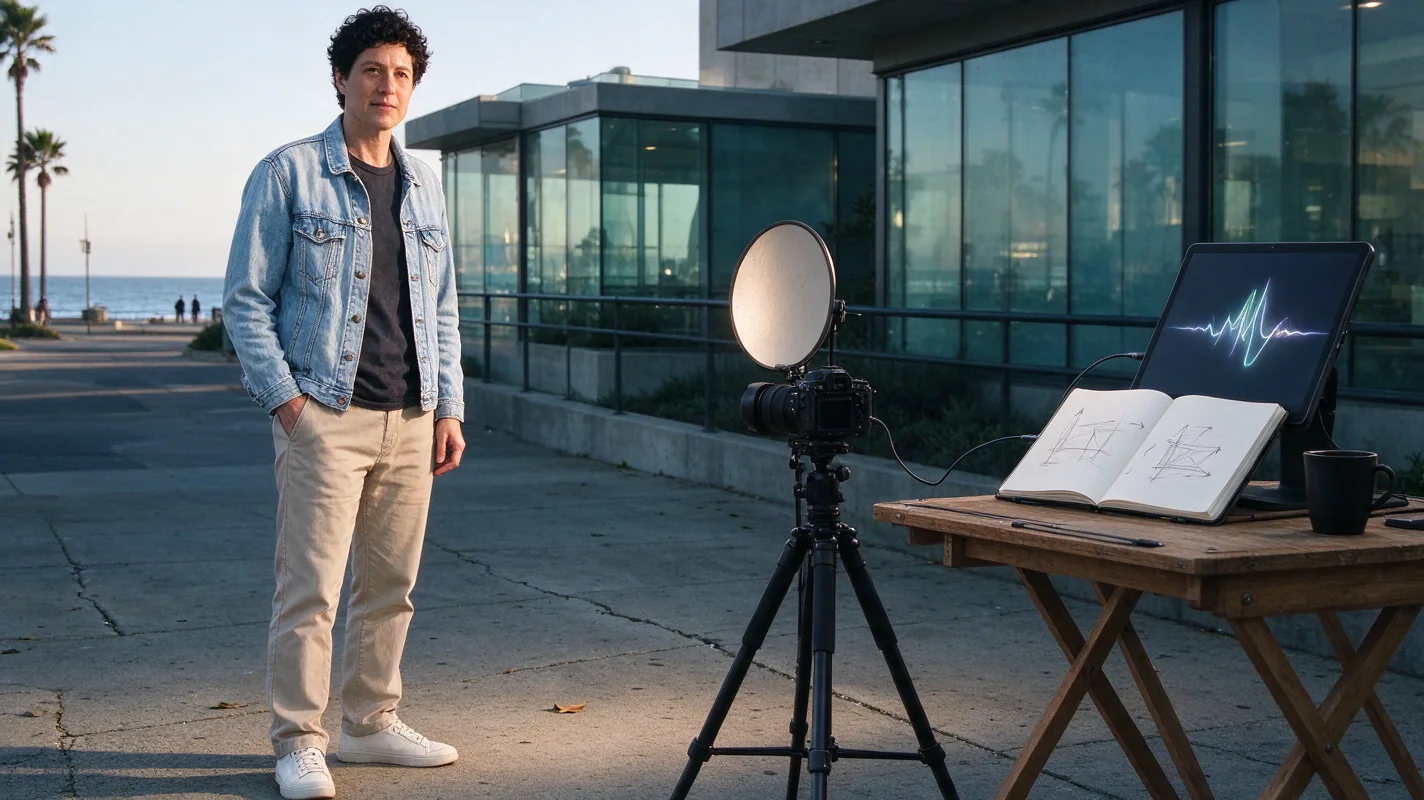
Let's walk through an example using a consenting adult. For this illustration, imagine we have a photo of a person wearing a denim jacket, standing indoors. The goal is to create a "Plug Walk" video.
Illustration: Generating a Plug Walk Video
- Access the Tool: Navigate to the Plug Walk AI Filter's website (https://plugwalkaifilter.pro) and locate the embedded generator at the #tool section.
- Upload Photo: Click the upload button and select a JPG, PNG, or WebP image of your consenting adult. Ensure the photo is under 10MB and clearly shows the subject's face and upper body. For this example, we'll use a photo of a person in a denim jacket, facing slightly towards the camera, with a neutral expression.
- Select Generation Model: The tool specifies using "Standard Seedance 2.0 only (no Fast, Mini, 2.5)". Ensure this is selected.
- Review Default Settings: The default output is a 12-second, 9:16 aspect ratio, 720p MP4 video. The scene is a prompt-driven car-window POV at sunset, incorporating a "one dollar friendly tip, grin, step back, loose bent-knee side-to-side walk." An original instrumental beat will accompany the video.
- Initiate Generation: After confirming your input and settings, you will be prompted to purchase credits if you haven't already. The site states "purchase required before generation" and "no free credits, signup reward, trial generation, watermark preview or free unlock." Once credits are available, initiate the generation process. Note that the "15-second payment prompt countdown is not a generation process."
- Receive Output: The AI will process your request. The generated video will be a unique interpretation of the "Plug Walk" scene, incorporating the subject from your photo. The AI aims for a "grin" and the specified walk, but exact likeness, timing, and motion are not guaranteed. The output will be a private MP4 file. You have the option to share it publicly, subject to editorial selection.
This illustration highlights the core steps. The AI will interpret the denim jacket, the subject's features, and apply the "Plug Walk" actions within the car-window sunset scene. The generated grin and walk will be AI-driven, not a direct copy of any pose in the original photo.
Credit System and Costs
The Plug Walk AI Filter operates on a credit-based system. There are no free trials, signup rewards, or watermark previews. To generate a video, you must purchase credits. The default generation settings (12-second, 9:16, 720p MP4) cost 30 credits. It's important to understand the credit types: "One-time credits never expire," while "monthly/yearly credits expire at end of respective billing period." Cancellation of a subscription only stops future renewals; it does not affect the current billing period or any generated content. For detailed pricing information, refer to [plug-walk-ai-filter-cost].
Privacy and Output Management
Your inputs and the generated outputs are treated as private by default. The website states, "Inputs private; result private by default, public sharing opt-in and editorial selection." This means your photos and the resulting videos are not shared publicly unless you explicitly opt-in. If you choose to share, your content may be subject to editorial selection by the platform. Failed generation tasks will result in credits being returned to your account, not automatic cash refunds. The system is designed to be secure, utilizing "OTP email login, no passwords or Google" for account access.
Troubleshooting Common Issues
Variations in AI output are expected. If the generated face or hands do not match your expectations, or if the motion timing is off, it's important to remember the AI's limitations. The service "never guarantee[s] exact likeness, timing, viral reach or successful output." If a task fails, credits are returned. For persistent issues with face or hand rendering, consult [fix-plug-walk-ai-face-hands]. If you encounter problems with the generated music, review [plug-walk-ai-filter-music]. Remember, the AI creates a new interpretation, not a perfect replica.
Practical Checklist for Generation
To ensure a smooth generation process, use this checklist:
| Step | Action | Notes |
|---|---|---|
| 1. Input Selection | Choose a clear, well-lit JPG, PNG, or WebP photo (<=10MB) or text. | Focus on subject's face and upper body. Ensure consent for adult subjects. For pets, manage expectations regarding "Plug Walk" vibe. See [plug-walk-ai-filter-cat-dog] for pet-specific insights. |
| 2. Access Tool | Navigate to https://plugwalkaifilter.pro and find the #tool. | Ensure you are on the correct, independent site. |
| 3. Upload/Input | Upload your chosen photo or enter descriptive text. | Double-check file size and format. |
| 4. Settings Confirmation | Verify "Standard Seedance 2.0" is selected. | Default settings (12s, 9:16, 720p MP4, car-window scene, specific actions) apply unless otherwise specified. |
| 5. Credit Purchase | Ensure you have sufficient credits (30 for default output). | No free credits, trials, or previews. Purchase is required before generation. One-time credits do not expire. |
| 6. Initiate Generation | Click the generate button. | Ignore the 15-second payment prompt countdown; it is not part of the generation. |
| 7. Review Output | Download and review your generated MP4 video. | Understand that AI results vary. Exact likeness, timing, and motion are not guaranteed. |
| 8. Privacy Options | Decide whether to keep the result private or opt-in for public sharing. | Inputs and outputs are private by default. Public sharing is optional and subject to editorial selection. See [plug-walk-ai-filter-privacy]. |
| 9. Troubleshooting | If issues arise, consult FAQs or relevant guides. | Refer to troubleshooting guides for face/hand issues or music. Failed tasks return credits. |
Frequently Asked Questions (FAQs)
Q1: Can I use a video clip as input instead of a photo?
A1: No, the Plug Walk AI Filter specifically accepts only one photo (JPG/PNG/WebP <=10MB) or text describing an original subject. It does not process video clips as input for generation.
Q2: How long does the generation process take?
A2: The provided facts do not specify the exact duration of the AI generation process after initiation. The "15-second payment prompt countdown" is explicitly stated as not being a generation process. Users should expect processing time after purchasing credits and initiating the request.
Q3: Can I get a refund if I don't like the generated video?
A3: The service states, "Failed tasks return credits to their original source, not automatic cash refunds." This implies that if the generation fails entirely, you will receive your credits back. However, dissatisfaction with the aesthetic outcome of a successful generation is not covered by automatic cash refunds.
Q4: What kind of music is used in the generated videos?
A4: The Plug Walk AI Filter uses an "original instrumental beat requested; no licensed commercial song included." This means the music is AI-generated and unique to each video, not a popular song. For more on music, see [plug-walk-ai-filter-music].
Get Started with Plug Walk AI Filter
Ready to transform your photos into unique AI-generated "Plug Walk" videos? Explore the creative possibilities and generate your first video today.
Try the tool from this guide
One photo or text idea. The default 720p, 12-second video costs 30 purchased credits. Failed tasks return credits.
Make your Plug Walk AI video
The car-window scene is already prepared. Add only the details that matter to you.
This video: 30 credits · 720p · 12 seconds
Choose one photo or enter at least 10 characters, then confirm permission to continue.
Paid generation only. See the exact credits before you start.
Plug Walk AI Filter
Plug Walk AI Filter editorial team · Editorial guidance based on the current product settings.