The Plug Walk AI Filter Car Window Scene Explained
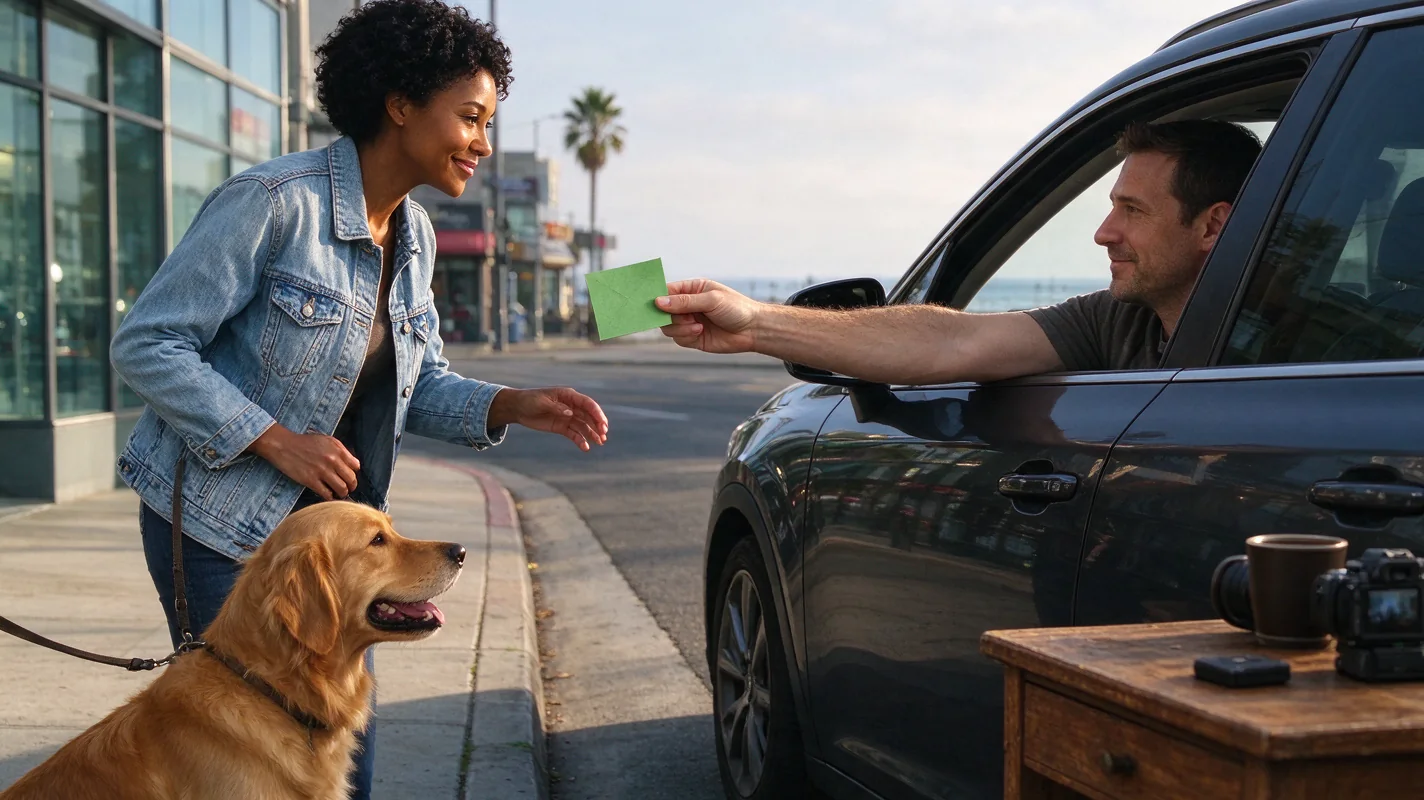
The "Plug Walk" AI Filter, accessible via the independent site plugwalkaifilter.pro, generates short video clips centered around a distinctive car window scene. This trend involves a specific set of visual and motion elements, all produced through AI interpretation of user inputs. The core of the generated video is a prompt-driven scene simulating a driver's-window point-of-view (POV) from a stationary car at sunset. Key actions within this scene include a "friendly one dollar tip," a "grin," a "step back," and a "loose bent-knee side-to-side walk." It's crucial to understand that the AI does not replicate exact reference videos; instead, it creates a new scene based on your provided input and the filter's parameters.
Understanding the Visual Elements
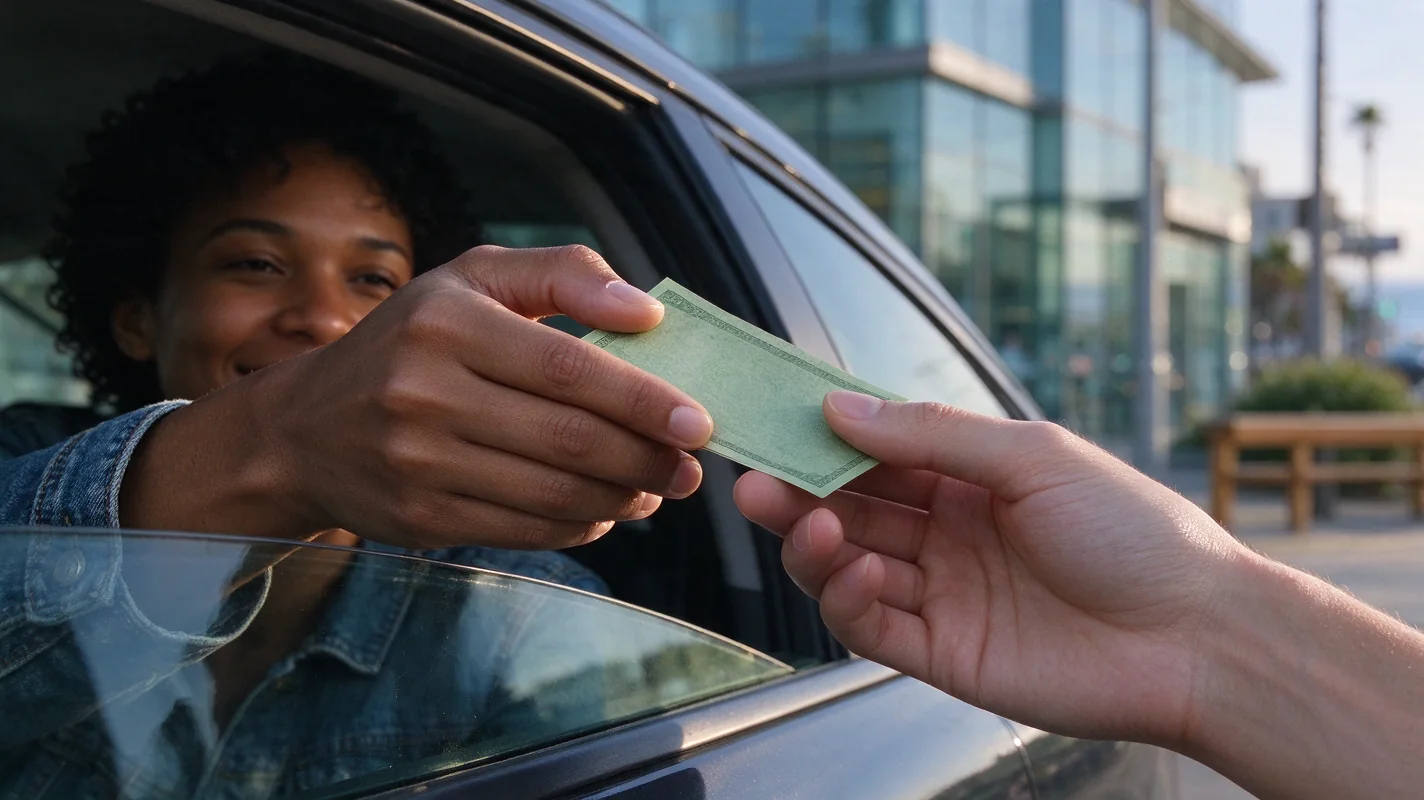
The scene's foundation is a stationary car, viewed from the driver's perspective, as if looking out the window. The time of day is set to sunset, which typically implies warm, golden lighting conditions, enhancing the visual atmosphere. The AI constructs this environment based on its internal models and the user's prompt. The "friendly one dollar tip" is a subtle gesture, often depicted as a hand extending a dollar bill, symbolizing a small, positive interaction or transaction. This is not a literal payment for the AI generation itself but a thematic element within the generated scene. The "grin" is an AI-generated facial expression, aiming for a pleasant and approachable look. The "step back" action is a short movement away from the camera, adding a sense of departure or completion to a brief interaction. Finally, the "loose bent-knee side-to-side walk" is the signature movement, characterized by a relaxed, slightly exaggerated gait that contributes to the trend's unique aesthetic. This walk is not about speed or precision but about conveying a casual, confident style.
AI Generation Process and Limitations
The Plug Walk AI Filter utilizes a specific AI model, Seedance 2.0, to generate these clips. It's important to note that only the Standard Seedance 2.0 version is available, excluding "Fast," "Mini," or "2.5" variants. The output is a default 12-second MP4 video in 9:16 aspect ratio and 720p resolution, costing 30 credits per generation. The AI interprets user inputs, which can be a single photo (JPG, PNG, or WebP, up to 10MB) of a consenting adult or pet, or a text description of an original subject. The AI then crafts a prompt-driven car-window scene, aiming to incorporate the requested elements. However, the AI's ability to perfectly replicate likeness, timing, or specific motions is variable. It generates results based on its training data and algorithms, meaning exact replication of a person's face, hand movements, or the precise timing of actions is not guaranteed. The AI generates an original instrumental beat for the audio component; licensed commercial songs are not included. Users should not expect guaranteed viral reach or successful output; the results are inherently unpredictable due to the nature of AI generation.
Input Requirements and Generation Costs
To use the Plug Walk AI Filter, users must provide either a photo or a text description. Photos should be of consenting adults or pets and adhere to the file size and format limitations (JPG/PNG/WebP <= 10MB). Text descriptions allow for more abstract or original subjects. The generation process requires credits. The site does not offer free credits, signup rewards, trial generations, or watermark previews. A purchase is necessary before any generation can occur, as there is no free unlock option. The standard cost for a 12-second clip is 30 credits. The 15-second payment prompt countdown is a procedural step before generation begins and is not part of the video creation itself. For detailed information on credit packages and pricing, refer to the Plug Walk AI Filter Cost guide.
Privacy and Output Management
User inputs are treated as private. By default, the generated results are also private. Users have the option to opt-in for public sharing, and these shared outputs may be selected for editorial features. This means that while your input and initial output are kept confidential, you can choose to make them visible and potentially showcase them. The filter does not apply a watermark to paid output. If a task fails, the credits are returned to the user's original source, but automatic cash refunds are not provided. Understanding credit expiry is important: one-time credits never expire, but monthly or yearly credit packages expire at the end of their respective billing periods. Cancellation of a subscription only stops future renewals; it does not affect current billing cycles or already purchased credits. For more on how your data is handled, consult the Plug Walk AI Filter Privacy guide.
Illustrative Example: Generating a Clip
Illustration: Generating a 'Friendly Tip' Scene
Imagine you want to create a clip featuring a pet. You upload a clear, well-lit JPG photo of your golden retriever, "Buddy," smiling. You select the "Standard Seedance 2.0" option and proceed to generation.
- Input: Photo of Buddy, the golden retriever.
- AI Interpretation: The AI recognizes Buddy's face and the general context of a pet. It interprets the "friendly one dollar tip" as a gesture, perhaps a paw reaching out near a dollar bill, or a subtle nod to the theme. The "grin" is translated into Buddy's natural happy expression. The "step back" and "walk" are AI-generated movements, simulating Buddy taking a step back from the car window and performing a gentle, side-to-side sway, as if moving away after a brief interaction.
- Scene Construction: The AI places Buddy's generated likeness within the sunset car window POV. The lighting is warm and diffused. An original instrumental beat plays.
- Output: A 12-second MP4 video showing Buddy's AI-generated form in the car window scene, performing the requested actions with a happy expression, followed by a short walk away. The AI's rendition of the "friendly tip" might be a stylized animation of a dollar bill appearing near Buddy's head or a subtle hand gesture overlay.
This illustration highlights how the AI interprets and synthesizes the elements into a unique output, rather than performing a direct copy. The exact visual representation of the "friendly tip" and the fluidity of the walk are subject to AI variation.
Practical Checklist for Generation
| Feature | Requirement/Consideration | Notes |
|---|---|---|
| Input Type | Photo (JPG/PNG/WebP <= 10MB) or Text Description | Ensure photo is of a consenting adult or pet. Text should be descriptive for original subjects. |
| AI Model | Standard Seedance 2.0 only | No "Fast", "Mini", or "2.5" versions available. |
| Output Format | MP4, 9:16 aspect ratio, 720p, 12 seconds | Default settings; no user control over duration or resolution. |
| Scene Elements | Stationary car, sunset, driver's-window POV | AI-generated environment based on prompt. |
| Actions | Friendly one dollar tip, grin, step back, bent-knee walk | AI interpretation of these actions; exact likeness not guaranteed. |
| Audio | Original instrumental beat | No licensed music included. |
| Credits | 30 credits per generation | Purchase required before generation. No free trials or credits. |
| Likeness/Timing | AI results vary; not guaranteed | Expect AI interpretation, not exact replication. |
| Privacy | Input private, output private by default | Opt-in for public sharing. |
| Refunds | Failed tasks return credits; no cash refunds | Credits are returned to the source. |
| Credit Expiry | One-time: never. Monthly/Yearly: end of billing period | Plan usage accordingly for recurring credit packages. |
| Watermark | No watermark on paid output | Purchase is required for watermark-free results. |
Comparison and Diagnostics
When comparing the Plug Walk AI Filter's output to other video editing tools or AI generators, key differences emerge. Unlike tools like CapCut, which offer extensive manual editing capabilities and direct control over effects, the Plug Walk AI Filter relies on a pre-defined AI model (Seedance 2.0) to interpret inputs and generate a specific type of scene. While CapCut allows users to meticulously craft scenes with precise timing, transitions, and effects, the Plug Walk AI Filter provides a more automated, prompt-driven experience. The AI's role is to synthesize the elements into a cohesive, albeit variable, output. If your goal is precise control and detailed editing, a traditional editor might be more suitable. If you are seeking a unique, AI-generated interpretation of a specific trend with minimal manual input, the Plug Walk AI Filter serves that purpose. For a more in-depth look at how it stacks up against popular editing software, consider the Plug Walk AI Filter vs. CapCut guide.
Common issues users might encounter relate to the AI's interpretation of faces and hands. If the generated face or hands do not look as expected, it's often due to the limitations of AI generation and the specific training data used. The AI might struggle with fine details, unique features, or complex poses. Similarly, the "timing" and "motion" are AI-driven and may not perfectly match user expectations for fluidity or realism. The site explicitly states that exact likeness, timing, and successful output are never guaranteed. For troubleshooting tips and explanations regarding AI variability in facial and hand generation, the Fix Plug Walk AI Face/Hands guide offers further insights.
Frequently Asked Questions
Q1: Can I use any photo for the Plug Walk AI Filter?
A1: You can use JPG, PNG, or WebP photos up to 10MB. The photo should be of a consenting adult or a pet. Ensure the image is clear and suitable for AI interpretation.
Q2: Does the AI copy my original video or photo exactly?
A2: No, the AI generates a new prompt-driven scene based on your input and the filter's parameters. It does not perform exact motion copying or replicate reference videos precisely. Results vary.
Q3: What happens if the AI generation fails?
A3: If a generation task fails, the credits used for that task are returned to their original source. The platform does not offer automatic cash refunds.
Q4: Is my uploaded photo and the generated video kept private?
A4: Yes, your input data is private. The generated results are also private by default. You can choose to opt-in for public sharing, and these may be selected for editorial purposes.
Get Started with the Plug Walk AI Filter
Ready to explore the unique car window AI trend? Dive into the creative possibilities and see what the AI can generate for you. Whether you're using a photo of a friend, a pet, or a descriptive text, the Plug Walk AI Filter offers a novel way to create short, engaging video clips.
Generate Your Clip Now at #tool
For more detailed guidance on crafting the perfect input, check out the Plug Walk AI Filter Prompt guide. If you're looking for the best type of photo to use, the Best Photo for Plug Walk AI Filter guide can provide valuable tips. For those interested in sharing their creations on social media, the Plug Walk AI Filter TikTok and Plug Walk AI Filter Instagram Reels guides offer platform-specific advice.
Try the tool from this guide
One photo or text idea. The default 720p, 12-second video costs 30 purchased credits. Failed tasks return credits.
Make your Plug Walk AI video
The car-window scene is already prepared. Add only the details that matter to you.
This video: 30 credits · 720p · 12 seconds
Choose one photo or enter at least 10 characters, then confirm permission to continue.
Paid generation only. See the exact credits before you start.
Plug Walk AI Filter
Plug Walk AI Filter editorial team · Editorial guidance based on the current product settings.