Prepare Your Plug Walk AI Video for TikTok
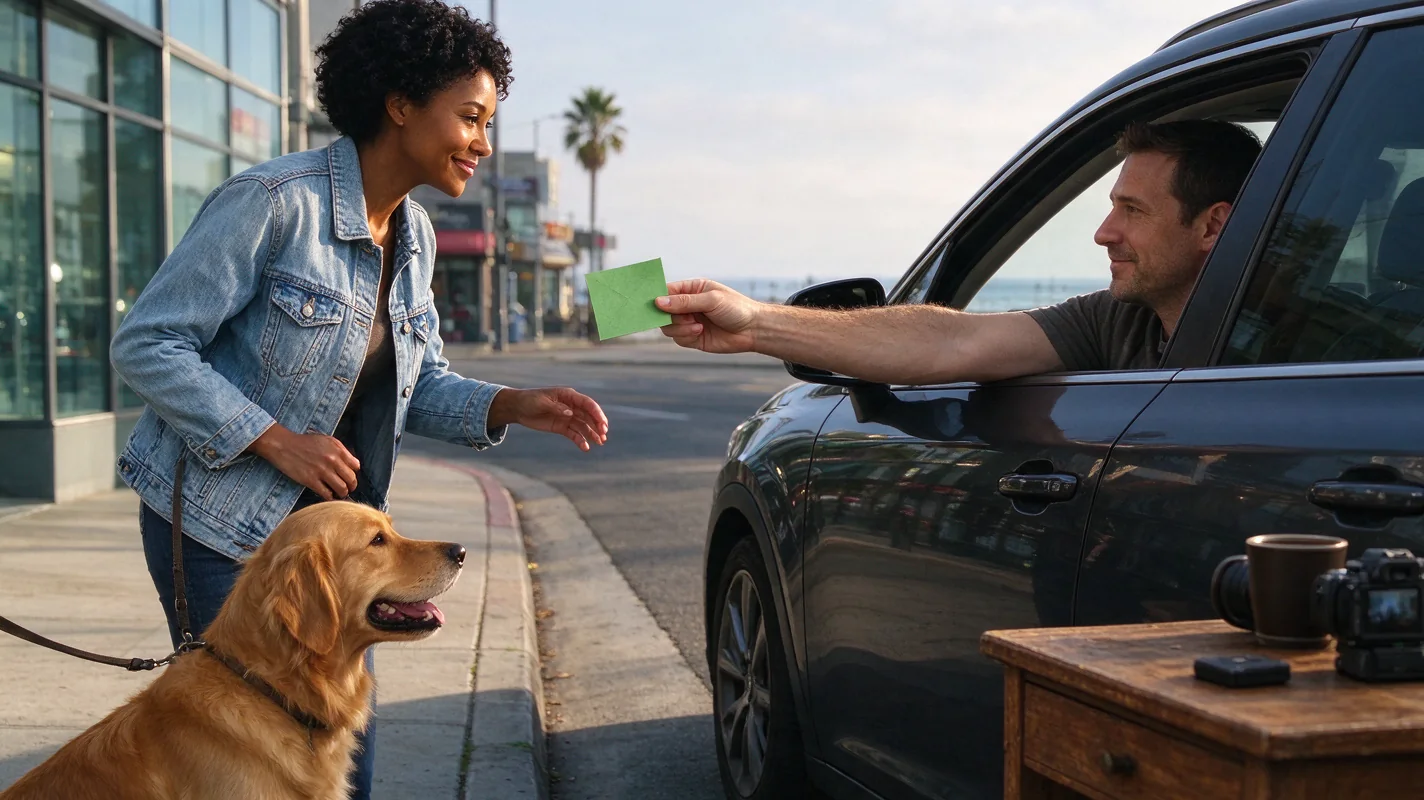
To effectively share your creation on TikTok, the first step is ensuring your generated MP4 video is optimized for the platform. The Plug Walk AI Filter produces a 9:16 aspect ratio MP4, which is ideal for TikTok's vertical format. However, it's crucial to review the generated video thoroughly before uploading. Pay close attention to the AI's rendition of faces, hands, and motion. While the tool aims for a specific aesthetic, AI outputs can vary, and likeness to the original input may not be exact. Ensure the visual quality meets your satisfaction and that the motion, though prompt-driven, aligns with your creative vision. The AI generates a unique car-window scene at sunset with a specific walk cycle; confirm this meets your desired outcome. Remember, the generation process uses a standard Seedance 2.0 model, resulting in a default 12-second clip. If you require a different duration or specific motion not covered by the default prompt, you may need to experiment with alternative inputs or consider if the tool's current capabilities align with your advanced needs.
Reviewing and Editing Your AI Output
Before you even think about uploading to TikTok, a critical review of your Plug Walk AI video is essential. The tool generates a 720p MP4 file. While this resolution is suitable for many social media platforms, assess if it meets your quality standards for TikTok. Examine the AI-generated elements: the driver's-window POV, the "dollar friendly tip," the "grin," the "step back," and the "loose bent-knee side-to-side walk." Are the hands and face rendered acceptably? Does the motion appear natural within the context of the AI's interpretation? Since the tool does not guarantee exact likeness or timing, some level of AI artifacting or stylistic interpretation is expected. If there are significant issues with the face or hands, consult guides on fix-plug-walk-ai-face-hands for potential troubleshooting or understanding limitations. Remember, the output is a "prompt-driven car-window scene," not a direct copy of reference video motion. This means the AI interprets your input to create a novel scene based on the underlying parameters. If the output is not to your liking, consider that failed tasks do return credits, but these are not automatic cash refunds. You might need to re-generate with adjusted input or a different photo/description.
Selecting and Adding Music for TikTok
TikTok's appeal is heavily reliant on its audio landscape. While the Plug Walk AI Filter generates an original instrumental beat and does not include licensed commercial songs, you will likely want to add a popular or trending sound from TikTok's native library to enhance your video's reach and engagement. When choosing a sound, consider what is currently trending on the platform. Browse the "Sounds" section within the TikTok app during the creation process. You can search for specific tracks, explore trending audio, or use sounds that have been used in popular videos. The key is to select audio that complements the mood and visual style of your AI-generated clip. A catchy beat or a popular snippet can significantly boost your video's discoverability. Ensure the selected sound's duration fits well with your 12-second AI video, or be prepared to trim it within TikTok's editor. For more insights into audio choices, explore guides on plug-walk-ai-filter-music which might offer further context on audio integration.
Crafting Your TikTok Caption and Hashtags
Once your video is ready and you have selected your audio, the next step is to write a compelling caption and choose relevant hashtags. Your caption should be concise and engaging, encouraging viewers to watch your unique AI-generated content. You can mention that the video was created using AI, which can pique curiosity. For instance, a caption like "My first AI-generated "plug walk" vibe! 🚗💨 What do you think? #PlugWalkAI #AICreation #AIVideo #DigitalArt" works well. Hashtags are crucial for discoverability on TikTok. Use a mix of broad and niche hashtags. Relevant tags include #PlugWalkAI, #AICreation, #AIVideo, #DigitalArt, #CreativeTech, and potentially trending audio-specific hashtags if applicable. If your video is particularly striking or uses a specific aesthetic, consider hashtags like #CarWindowView or #SunsetVibes. For a deeper dive into creating effective content, review guides on plug-walk-ai-filter-tiktok and plug-walk-ai-filter-instagram-reels which offer broader strategies for short-form video platforms.
AI Disclosure and Ethical Considerations
Transparency is increasingly important on social media. When posting AI-generated content, it is good practice to disclose its origin. This helps manage viewer expectations and contributes to an honest online environment. You can do this subtly within your caption, as suggested above, or by using TikTok's built-in features if available (though exact features can change). Phrases like "AI-generated," "Created with AI," or "AI Art" are clear and effective. This disclosure is especially relevant given that AI outputs can sometimes be uncanny or unexpected. The Plug Walk AI Filter's terms state that AI face/hand/motion/audio results vary and are never guaranteed to be an exact likeness. By disclosing the AI origin, you preemptively address potential viewer comments about the uncanny nature of the visuals. This aligns with responsible content creation practices and respects the audience's right to know the nature of the media they are consuming. For more on privacy and content handling, refer to plug-walk-ai-filter-privacy.
Publishing Your Video to TikTok
Once your video is edited, captioned, and you've considered your AI disclosure, you are ready to publish. Open the TikTok app and tap the "+" icon to create a new post. Select your prepared MP4 file from your device's gallery. TikTok will then allow you to add sound, edit clips, adjust volume, and add text overlays or effects. Apply your chosen trending sound. Review your caption and hashtags one last time. Ensure all elements are correctly placed and that the video plays as intended. When you are satisfied, tap "Post." Your video will then be uploaded to your TikTok profile and will be visible to your followers and potentially a wider audience, depending on the algorithm and engagement. Remember that inputs are private, and results are private by default; public sharing is an opt-in. This means you have control over whether your generated content is shared beyond your personal use, though for TikTok, you will be explicitly uploading it.
Worked Example: Posting a Plug Walk AI Video
Illustration:
- Generate Video: I uploaded a photo of my pet cat, Mittens, to the Plug Walk AI Filter website. I used the default Seedance 2.0 settings and received a 12-second MP4 of Mittens performing the "plug walk" in a car window scene at sunset. The AI interpreted the "grin" and "step back" prompts in a charming, slightly abstract way, and the "loose bent-knee side-to-side walk" was a fun, bouncy motion.
- Review Output: I watched the MP4 on my phone. The face and paws were recognizable as Mittens, though not photorealistic. The motion was fluid and fit the "plug walk" description. The 720p resolution looked good on my mobile screen.
- Select Music: I opened TikTok, tapped "+", and selected the generated MP4. I then went to "Sounds" and searched for "upbeat synthwave." I found a trending track that was 15 seconds long and perfectly matched the cool, retro vibe of the AI video. I trimmed the sound to fit the 12-second video.
- Write Caption & Hashtags: My caption read: "Mittens doing the AI plug walk! 😻 So cool seeing this generated. #PlugWalkAI #CatAI #AIVideo #PetTok #CreativeAI #SynthwaveVibes"
- Publish: I added the caption, confirmed the sound was synced, and tapped "Post." The video went live on my TikTok profile.
Practical Checklist for TikTok Posting
| Task | Status | Notes |
|---|---|---|
| Video Generation | Complete | Uploaded photo/text, selected standard Seedance 2.0, received 12s 720p MP4. |
| Video Review | Complete | Checked visual quality, AI interpretation of face/hands/motion, overall aesthetic. |
| Audio Selection | Complete | Chose a trending/suitable sound from TikTok's library, trimmed to fit video length. |
| Caption Creation | Complete | Wrote a concise, engaging caption. |
| Hashtag Strategy | Complete | Included relevant mix of broad and niche hashtags (e.g., #PlugWalkAI, #AICreation, #TikTokTrend). |
| AI Disclosure | Complete | Mentioned AI origin in caption or implicitly through context. |
| TikTok Upload | Complete | Uploaded MP4, added sound, reviewed final edit. |
| Final Publish | Pending | Tap "Post" to share to TikTok. |
Comparison: Plug Walk AI vs. Standard Video Editing
The Plug Walk AI Filter offers a unique approach to content creation compared to traditional video editing. Standard editing software like CapCut or Premiere Pro allows for precise control over every element: you can manually animate, add specific effects, and use any licensed music you choose. This offers maximum flexibility but requires significant skill and time. The Plug Walk AI Filter, on the other hand, automates the complex process of generating a specific type of animated scene based on AI interpretation. It's ideal for users who want a quick, novel visual without deep editing knowledge. The trade-off is less granular control; you work with the AI's output and prompt-driven scene generation. For instance, the AI's "car-window scene" is a pre-defined concept, whereas in manual editing, you could build any scene from scratch. While Plug Walk AI generates an original instrumental beat, you'll likely supplement this with trending TikTok audio, whereas in manual editing, you might integrate licensed tracks directly. For a deeper look at platform comparisons, see plug-walk-ai-filter-vs-capcut.
Frequently Asked Questions (FAQs)
Q1: Can I use any photo for the Plug Walk AI Filter?
A1: The tool accepts one photo (JPG/PNG/WebP <=10MB) of a consenting adult or pet. Ensure the photo is clear and suitable for AI interpretation. It's recommended to use high-quality images for better results. For more tips, check out best-photo-for-plug-walk-filter.
Q2: What if the AI doesn't generate my face or hands correctly?
A2: AI generation can vary. The tool states that AI face/hand/motion/audio results vary and do not guarantee exact likeness. If results are unsatisfactory, you can try re-generating with a different input or consult guides on fix-plug-walk-ai-face-hands for potential workarounds or to understand the limitations.
Q3: Do I get free credits to try the Plug Walk AI Filter?
A3: No, there are no free credits, signup rewards, trial generations, or watermark previews. Purchase of credits is required before generation. Failed tasks return credits to their original source, but there are no automatic cash refunds. Information on costs can be found in plug-walk-ai-filter-cost.
Q4: Is my uploaded photo and the generated video private?
A4: Inputs are private. The generated result is private by default. Public sharing is an opt-in feature and subject to editorial selection. This means your content is not automatically made public. For more details, see plug-walk-ai-filter-privacy.
Primary Call to Action
Ready to create your own unique AI-generated "plug walk" video for TikTok? Visit the tool to get started!
Try the tool from this guide
One photo or text idea. The default 720p, 12-second video costs 30 purchased credits. Failed tasks return credits.
Make your Plug Walk AI video
The car-window scene is already prepared. Add only the details that matter to you.
This video: 30 credits · 720p · 12 seconds
Choose one photo or enter at least 10 characters, then confirm permission to continue.
Paid generation only. See the exact credits before you start.
Plug Walk AI Filter
Plug Walk AI Filter editorial team · Editorial guidance based on the current product settings.